
Free · your photos stay with you
Resize photos
Prepare lighter photos for messages, forms or listings. Processing takes place in your browser.
Choose JPEG, PNG or WebP. Originals remain unchanged.
Aspect ratio is preserved, without cropping. New files contain no copied EXIF/GPS metadata. JPEG replaces transparency with white. PNG is lossless and does not use the quality setting. Output can be larger than the original.
Up to 50 photos, each up to 50 MiB and 100 million pixels. Output: edge up to 8192 px, up to 32 million pixels total. No animation, HEIC or RAW. Large files may exceed your device’s memory. Do not change language or close the tab before downloading results. Up to 200 MiB of completed results per batch.
Android · version 1.0.0
Photos at hand, even offline
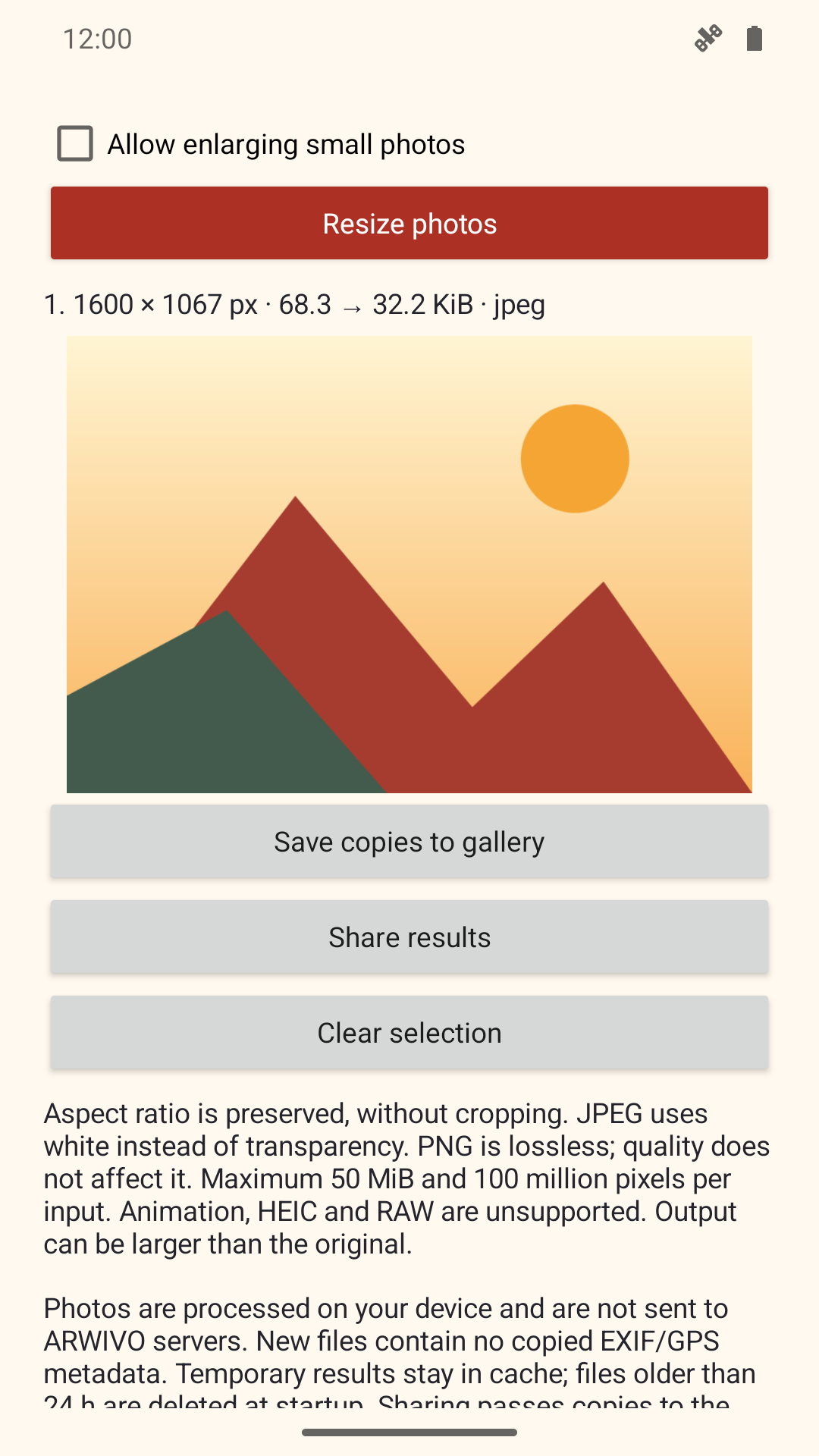
Select multiple gallery photos, resize them and save or share new copies in the app. Without uploading photos to ARWIVO servers.


Free app with a small AdMob banner and ad privacy choices. Ads use the network independently of local photo processing. Your gallery provider may retrieve selected files from its own cloud. App privacy
Smaller files, a clear picture — a practical guide
Pixels and megabytes describe different things
Dimensions give the number of pixels across and down, such as 4000 × 3000 px. File size, such as 4 MB, describes the amount of data. Two pictures with identical dimensions can have very different file sizes: a detailed forest usually needs more data than a plain background.
Reducing dimensions removes pixels. JPEG or WebP compression also simplifies how the picture is represented. That is why you can set dimension limits, format and quality separately. No quality value guarantees a particular number of kilobytes.
How to prepare a new copy
1. Choose photos from your device. 2. Set maximum width and height or choose a preset. 3. Choose JPEG for typical photos, PNG for transparency and simple graphics, or WebP for compatible destinations. 4. Start with quality 85 for JPEG/WebP. 5. Process the photos, check the preview, dimensions and file size, then download the results you need.
Each download button saves a separate copy. Settings apply to all selected photos. The original is not overwritten. If a form imposes a KB or MB limit, check the actual output size. Reduce dimensions or quality if needed, then process the original again.
Two limits, without stretching or cropping
Width and height define a box that the photo must fit inside. Aspect ratio is preserved, so the result will not necessarily match both entered dimensions exactly. EXIF orientation is taken into account during decoding; the output already contains correctly arranged pixels.
Enlarging small images is off by default. Turning it on adds pixels but cannot recover details missing from the source. Rounding to whole pixels can slightly change the ratio of an extremely narrow image.
Three examples you can check
A 4000 × 3000 px photo with 1600 × 1600 px limits becomes 1600 × 1200 px. A portrait image of 3000 × 4000 px becomes 1200 × 1600 px with the same limits.
A small 800 × 600 px photo remains 800 × 600 px with 1600 × 1600 limits and enlargement disabled. Enable enlargement and it becomes 1600 × 1200 px, without a promise of improved sharpness.
A transparent PNG graphic retains transparency when exported as PNG or WebP. Exporting as JPEG makes transparent areas white. Check a logo’s light and dark areas before using it.
Choose a format for the photo and its destination
JPEG is widely supported and suits ordinary photographs. Repeated lossy saves can degrade an image, so begin each attempt with the source. For small text, pay particular attention to halos, letters and high contrast edges.
PNG encodes pixels losslessly, but resizing beforehand still removes detail. For photographs PNG can be larger than JPEG. The quality setting does not affect it. WebP can produce lighter photos with transparency, but the receiving system must accept it. A missing browser encoder is reported as an error, without silently substituting a different format.
What happens to photos and metadata
The tool reads selected files locally and creates results in browser memory. It does not send a photo upload request to an ARWIVO server. The website itself is still downloaded over the internet and covered by its general privacy policy. Local image processing does not mean every website service works offline.
The result is encoded again without copying EXIF/GPS. This limits location and camera information in metadata, but does not remove an address, faces or other details visible in the picture itself. Review its contents before sharing. Closing the tab or clearing the selection removes results available here; downloaded copies stay in the chosen location on your device.
When to use another tool
This version supports still JPEG, PNG and WebP. It rejects animations, HEIC and RAW. If your phone saves HEIC, first export a JPEG copy in your gallery. Damaged files, revoked access or limited memory may prevent one photo from being processed; other valid photos can still produce results.
This is not a cropping, retouching, detail recovery or ICC-managed print preparation tool. The browser may convert colours; Android creates sRGB output. For printing, official documents and exact specifications, check the recipient’s requirements and the final file. Keep your original.
Common questions
Can I get exactly 200 KB?
A target file size is not guaranteed. Check the result and gradually reduce dimensions or quality, always starting from the original.
Will my originals change?
No. The browser reads selected photos and offers new files for download.
Why is the file larger?
Format, image detail and existing compression all affect size. In particular, PNG can be larger than the source JPEG.